|
Serving
Sizer
Pro™
Recipe Cards for iPad
your recipes, organized for cooking
 |
Customize recipes
for:
- families
- couples
- individuals
- large groups
- small groups
Also converts
recipes between
Metric and US measures
|
|
|
|
| Recipe index cards
for your iPad! |
|
| ✔
Organize all your recipe cards,
handwritten family recipes, and recipe clippings in one place |
✔ Categories
done
right -- add multiple categories in sections to organize and quickly
drill down to find your recipes.
|
| ✔
Quick entry of recipe
information--pick from 500+ ingredients, use custom sliders to pick
fractional amounts and units. Add photos. |
| ✔ Easy-to-read screen for cooking,
full screen recipe display of converted ingredients with
instructions, with cooking mode where screen stays on while cooking. |
| ✔ Change the serving size at any time
and the whole recipe is converted instantly. |
✔ Email converted recipes to your
friends and family or print out using Air Print (available on iOS 4.2
only).
|
|
Winner:
in iPad parenting
category
|
Serving
Sizer
Pro™
does
what
your
regular
cookbook
can't--
instantly scales recipes based on number of guests coming for dinner!
| Got
a family of
five? |
✔
Scale 4 serving
recipes to 5-- less leftovers than just doubling the recipe. |
| Holiday
dinner?
|
✔
Change a 6-serving
recipe to 14 one year, then change it to 9 the next. |
| Dinner
for
one? |
✔
Convert that 4
serving recipe to a 1-person meal, so you don't have 3 days of
leftovers.
|
Catering
for
100?
|
✔
Calculate the right
amounts to buy and make. Reuse the recipe next time for a different
sized group.
|
Dinner
party?
|
✔
Sure, anyone can double a recipe from 4 to 8 servings, but what if you
have 10 people coming and don't want to run out of meat? Calculate how
many pounds of meat to buy for your dinner party.
|
Dinner
for
two?
|
✔
Scale down recipes for a romantic dinner for two.
|
Bought
a
cookbook
while
traveling
out
of
the
country?
|
✔
Convert the recipes' ingredients between Metric and US measures so you
can cook with the kitchen tools you're used to.
|
Easily convert
entire recipes using serving sizes--no more fraction
math.
Save
your
favorites
and
revise
recipes
for
current
guest
size
in
a
snap.
FEATURES:
• Organize and
customize your recipes in a handy recipe index card format.
• NEW: Organize
your
recipes
by
multiple
categories
and
sections,
easy
to
drill
down
to
find
the
right
recipe. Also can exclude categories.
• Elegant and
useful user interface
• Easy entry
with over 500 ingredients to pick from, complete with
search, or add your own.
• Easy entry
with beautifully designed sliders for standard fractional
amounts and units for volumes, weights, and items
• NEW: Add
photos
• While
cooking, display recipe in easy-to-read format--newly
calculated amounts and directions all on one screen. Increase or
decrease the font size to make reading the receipe even
easier!
• NEW:
Cooking Mode-- While on full-screen, iPad will not turn off while
cooking.
• Scaled
amounts are optimized for minimum number of steps and common
units, such as 1 cup and 1 Tbsp, instead of 17 tablespoons. (Optional
optimization of original entries.)
• Double,
triple, and halve buttons make it easy to convert quickly to
common recipe conversions.
• One tap
converts recipe between US and Metric
• No logins or
website accounts required
• No internet
connection required--all recipes saved LOCALLY on your iPad
• Email scaled
recipes to friends and family, or (NEW)
print them out using AirPrint
(requires iOS4.2 update)
• NEW:
Supports
multitasking and file sharing with iOS4.2 update.
APPLICATIONS:
✔ Anyone who
wants to organize that bulging file folder of loose recipes
✔ Holiday
feasts where the recipes are increased to serve more people
✔ Dinner
parties for a non-standard number of people
✔ Meals for
one or two from larger serving sizes
✔ Catering for
crowds
✔ Convert
European based recipes into a US format
✔ Convert US
based recipes into Metric
HOW
IT WORKS:
Please note: All features can be
viewed and used in either portrait or landscape orientations. However,
some entry methods may vary.
|
 |
 |
|
Recipe Box and
Categories
On Categories side
of screen
Selecting Categories to find recipes:
- Tap multiple categories to find recipes
quickly.
- Tap more in same section to
include
more recipes.
- Tap more in different section to show recipes
only listed in both sections.
- Tap a category twice to EXCLUDE it from the
search.(Indicated with a
.)
- Tap "Clear"
at
bottom to CLEAR all
selections.
- Edit categories and sections using "
" icon.
|
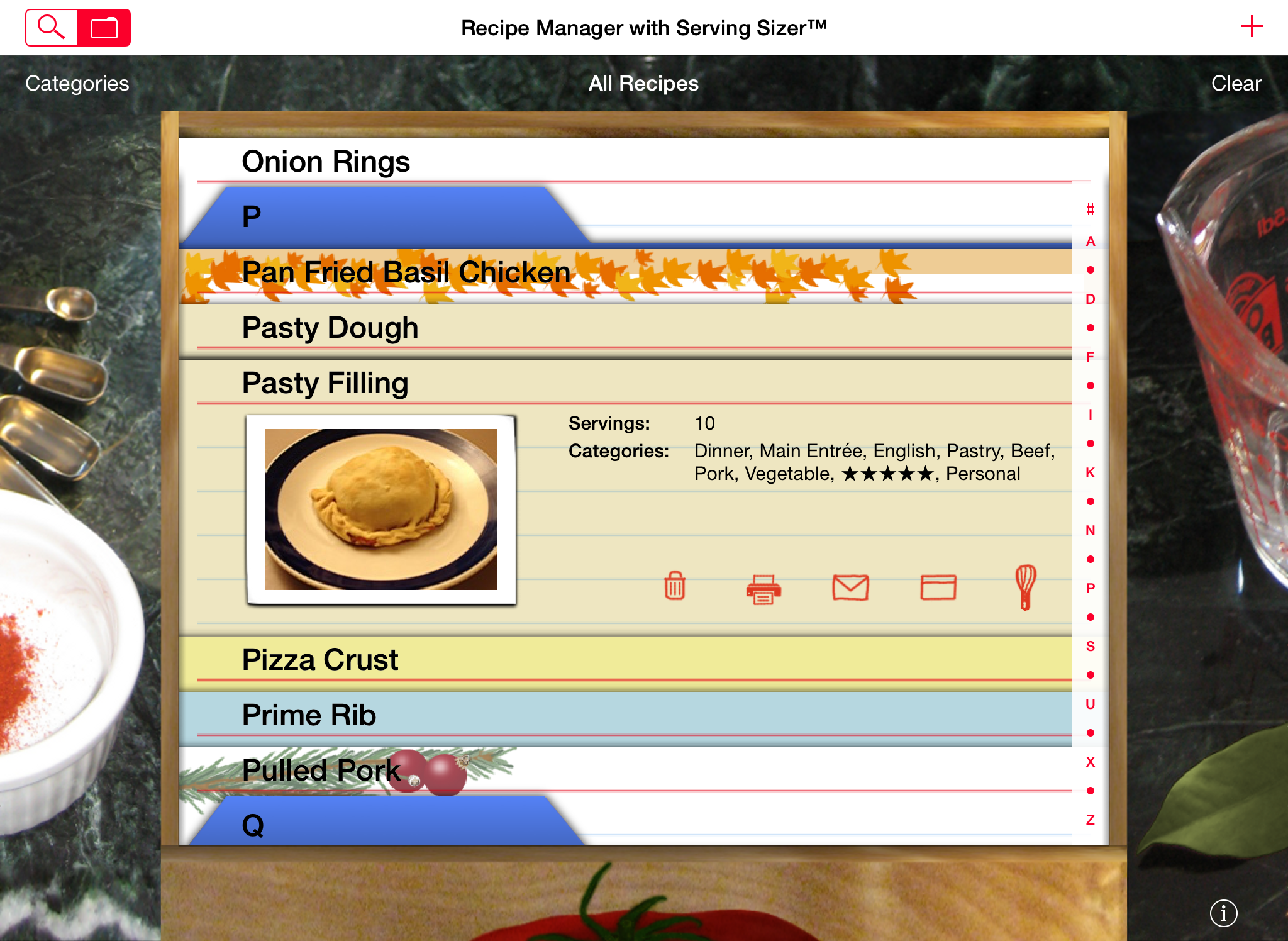
On Recipe Index Card
side of screen
- Tap "+" in top
right corner to add a new recipe.
- Tap on an index card to view and edit a recipe.
- Scroll upward by flicking to view more recipes.
- Tap on filter icon "
" to view which categories have been
filtered.
- Tap on "Clear"
at
top of screen to CLEAR category selections.
- Tap on the "i"
button
for help or contact information.
|
 |
- Rotate your iPad to view in landscape.
Tap "Categories" button at top to activate same functions as "Category
Side View" listed above.
- When recipes have been filtered, a filter
icon "
" will appear
at the top. Tap on it to view categories selected.
- Tap "Clear"
at
the top to CLEAR category selections.
|
|
 |
- Serving Sizer Pro Recipe Cards is
designed to be used in either Portrait or Landscape Orientations.
|
|
|
|
|
 |
Adding Ingredients:
- Tap "add new
ingredient" at the bottom of the
ingredient list to add an ingredient. (Flick to the bottom of the list
if you do not see this row.)
- or Tap on the arrow to view/edit an existing
ingredient.
- A popover comes up:
- Enter amounts in whole numbers and fractions
(using slider).
- Pick units, sorted by Volume, Weight, or Items
(for whole items like eggs,
or "cans of beans").
- Select from 500+ ingredients. Find easily via
search or side ABC index, or flick through the list.
- Tap "+" in popover, at bottom, to add a NEW
ingredient name. (Tip: add a
row of dashes ---- to for separator)
- Tap "Edit" to edit existing ingredient names.
Names can be as long as you wish.
- Tap outside the popover to accept changes.
Tip: Select zero
"0" for the amount, and "Items" for the unit to list ingredient name
only, like "salt, to taste".
|
|
|
|
Cooking Mode,
full screen
- Tapping the full screen icon
from the recipe card screen moves you to Cooking Mode, at full screen.
This screen shows you the
complete converted recipe, for
ease of use when cooking.
- Rotate to view in landscape.
- Tap the font buttons in the top right corner to
increase or decrease
the font size.
- Tap on the exit full screen icon in the top
left corner, to return to recipe card edit screen.
- iPad will not
turn off when in Cooking
Mode.
|
- Email converted
recipes to friends and family.
|
Serving
Sizer
Pro™
Recipe
Cards
for
iPad
-
your recipes, organized for cooking
|
Also available on the iPhone:
|
Serving
Sizer
Pro
recipe converter and cookbook
 |
Serving
Sizer
recipe converter
 |
|
| |
and available on
the PalmOS platform (features may vary): |
|
|
|

|

|
|
|
for
Palm
Centro,
Palm Treo,
and other Palm OS PDA's
|
for
Palm®
Pre™and Pixi™via
Classic by
Motion Apps
|
|
|
 |
|
|
|
|
|